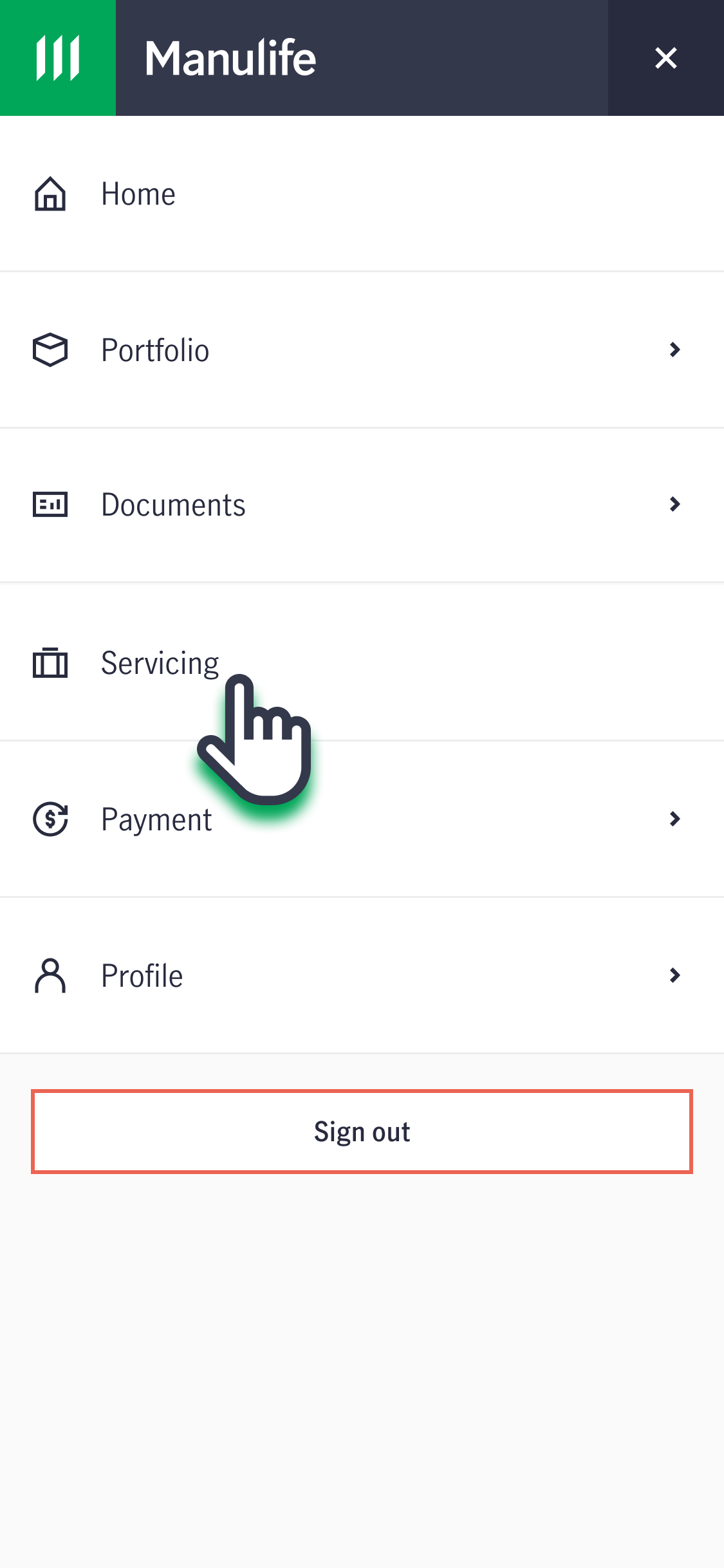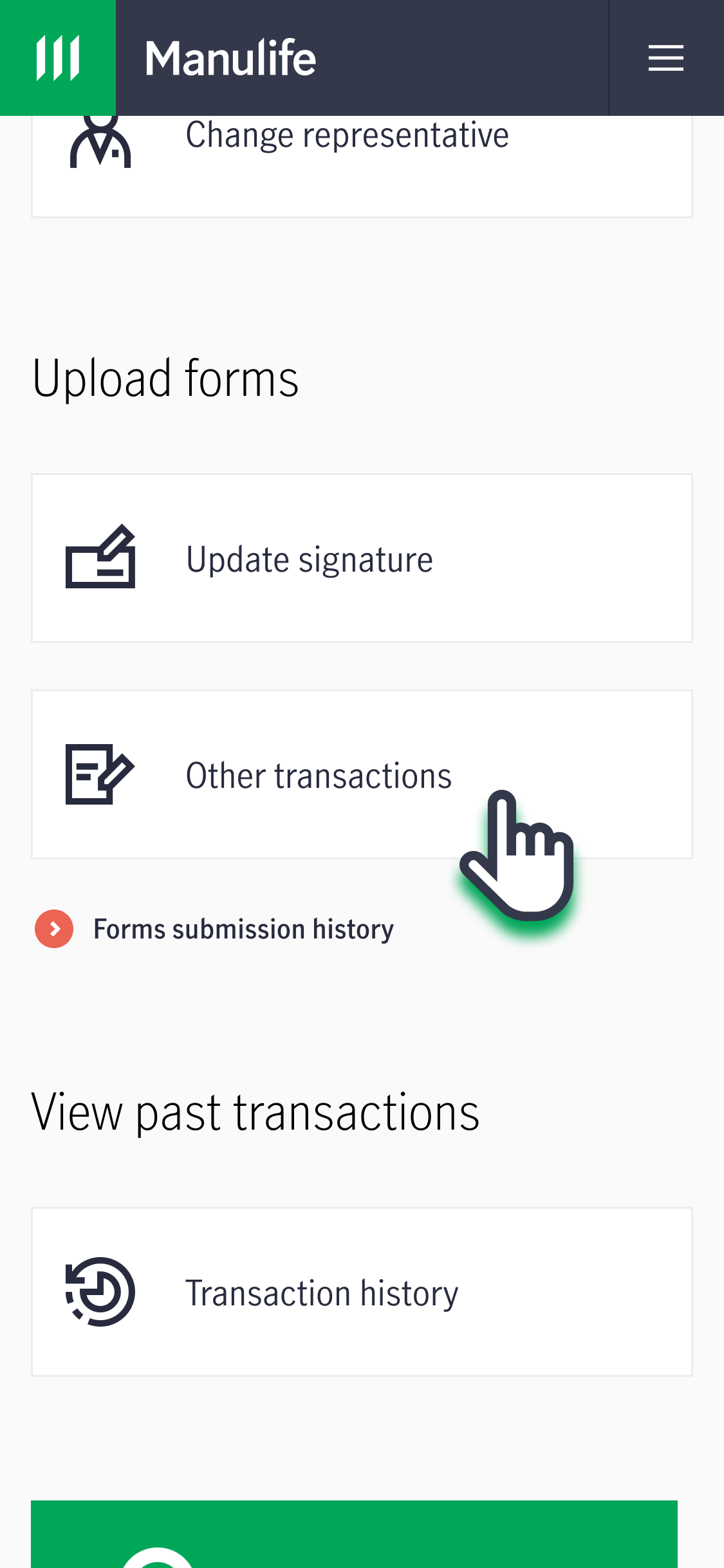

Find answers to frequently asked questions about Manulife's services and policies below.
Account registration and log in
How can I install the Manulife SG App?
Manulife SG App is available on both Google Play and Apple App Store. Download the app using the QR code below for convenient access to your policies.

How can I register a MyManulife / Manulife SG App account?
Follow the steps below to create your account:
1. Log in to your account via MyManulife or the Manulife SG App.
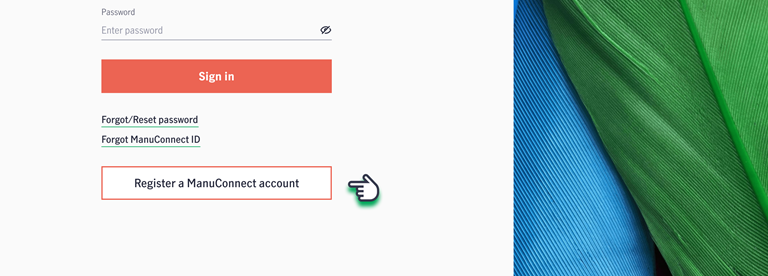
2. Click "Register a ManuConnect account".
.png)
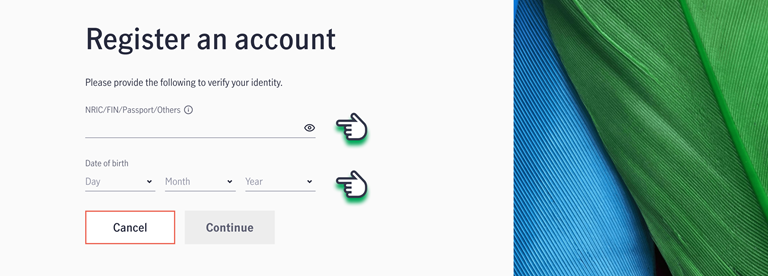
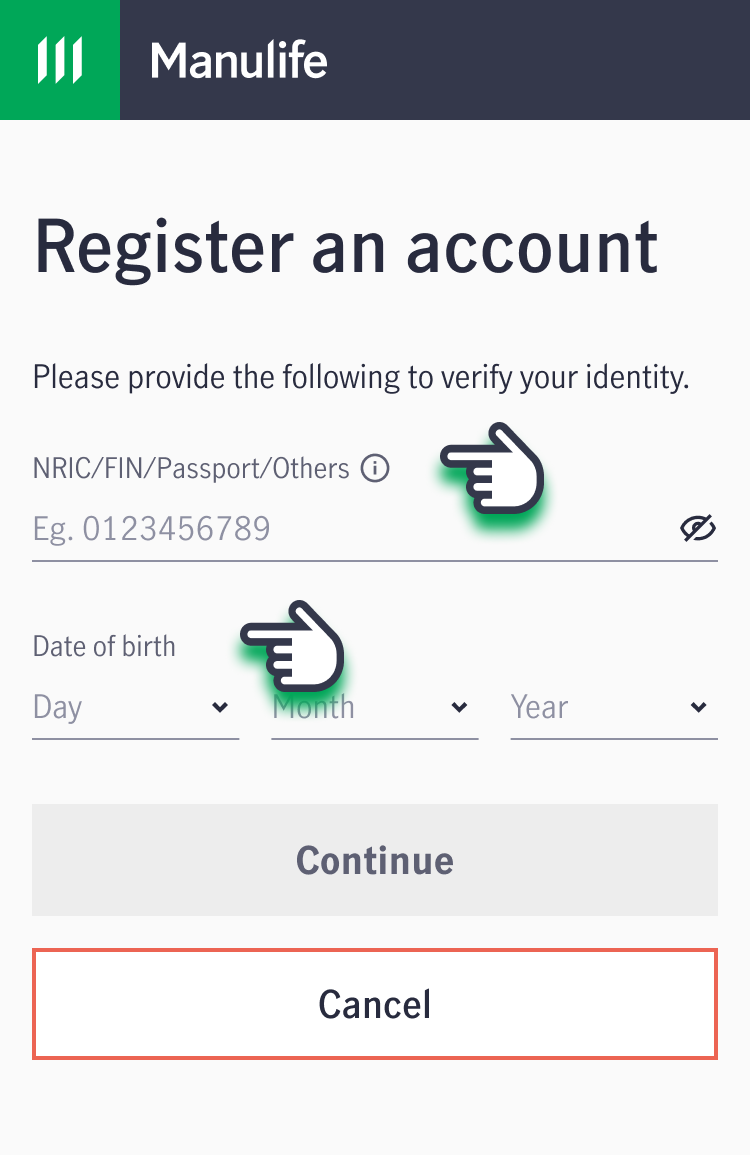
3. Enter your NRIC/FIN/Passport/Other identification number registered with Manulife and your date of birth, then click "Continue".
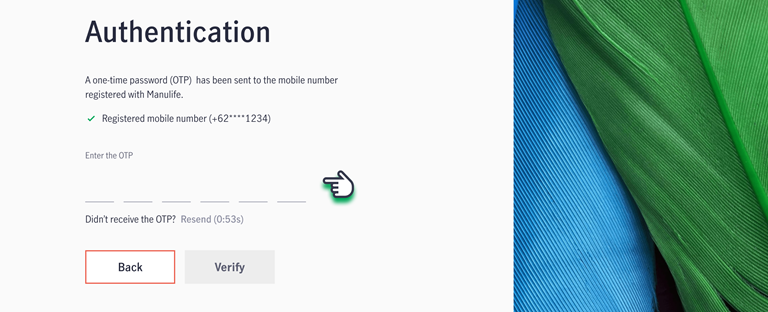
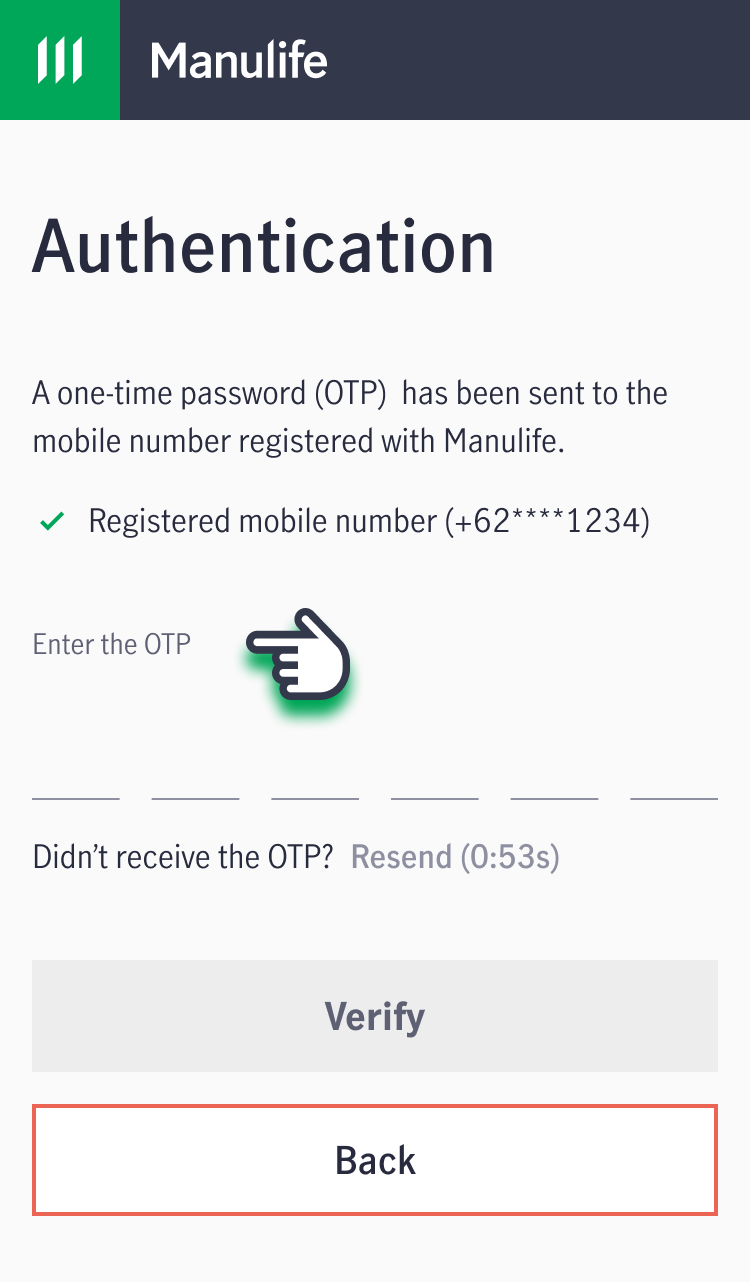
4. A One-Time Password (OTP) will be sent to your mobile number registered with Manulife. Verify your account by entering the OTP.
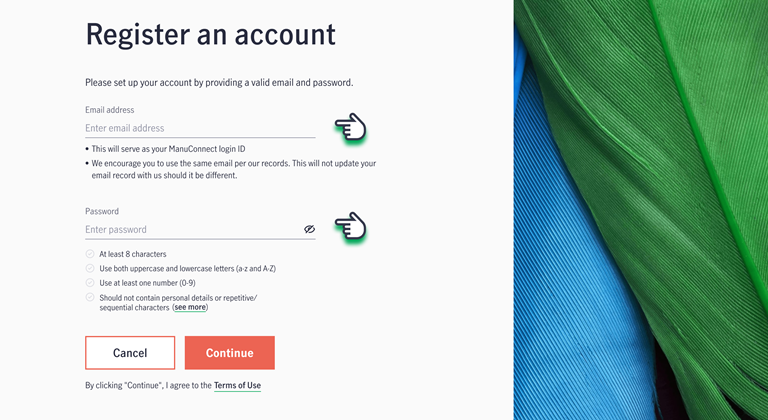
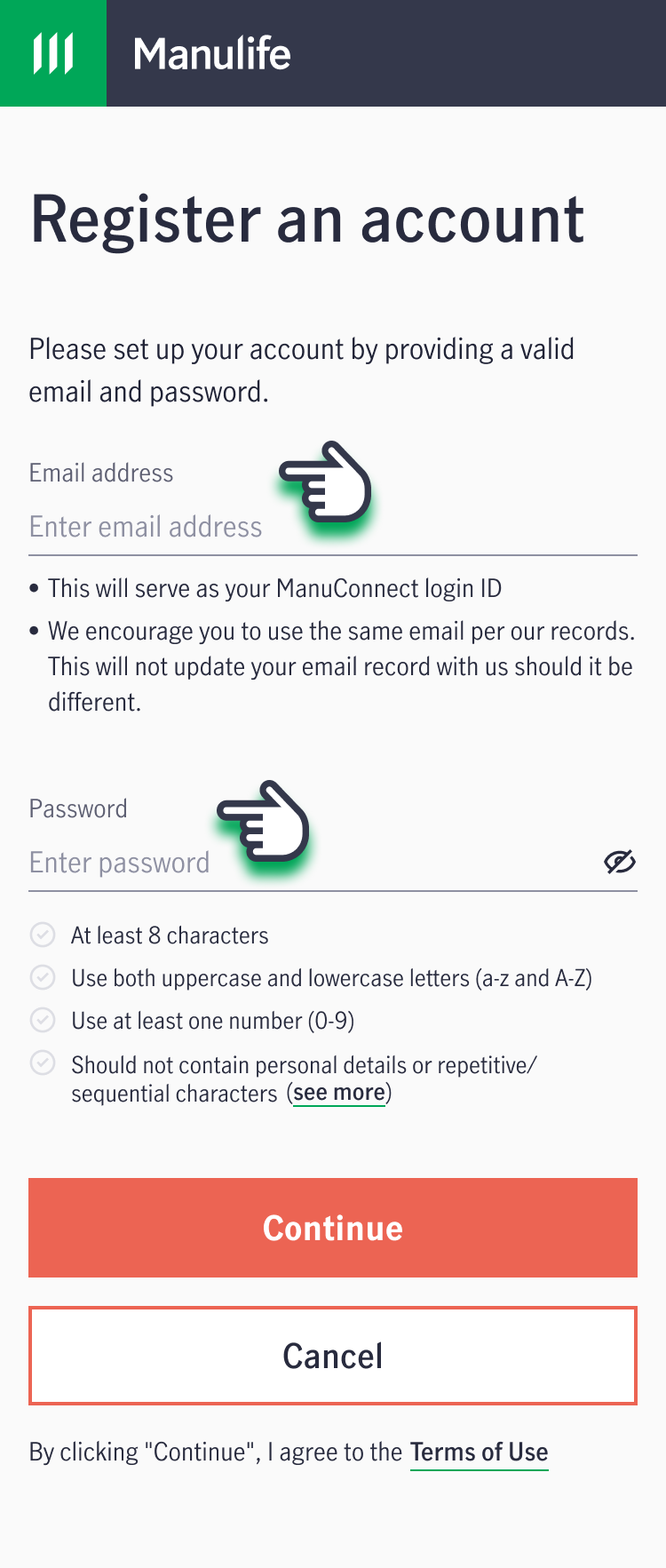
5. Input your registered email address and set your password, then click "Continue".
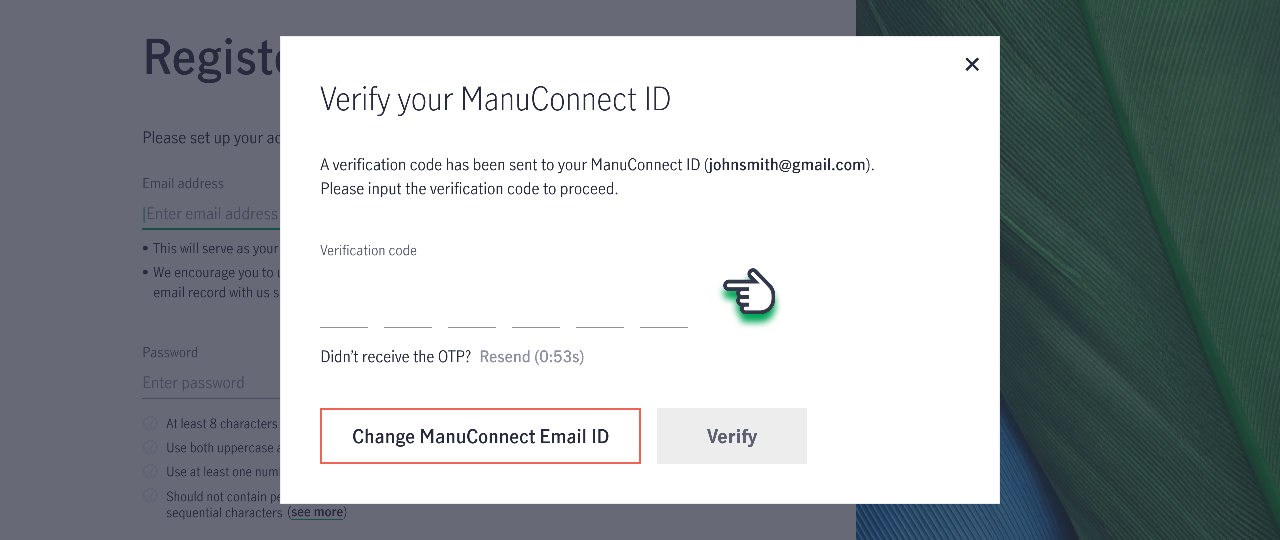
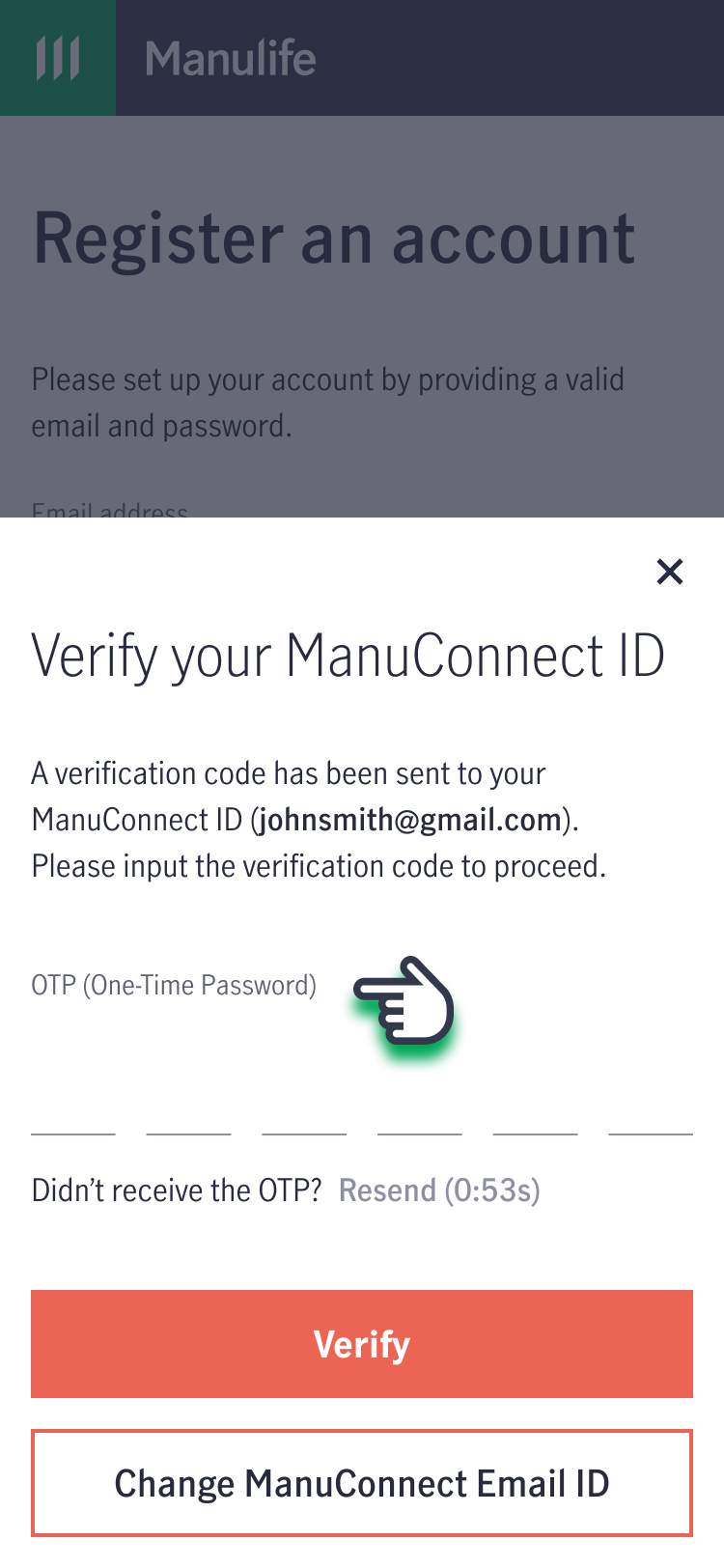
6. A verification code will be sent to this email address. Verify your account by entering the OTP.
7. Your account has been successfully created! You will be directed to the main page to log in and start using your account.

.png)
What is my ManuConnect ID?
ManuConnect ID is the login ID used to access all Manulife platforms.
If you have forgotten your ManuConnect ID, follow the steps below to retrieve your ManuConnect ID:
1. Log in to your account via MyManulife or the Manulife SG App.
2. If you're on MyManulife, click "Forgot ManuConnect ID." If you're using the Manulife SG App, tap "Sign in", followed by "Forgot/Reset password".
3. Enter your NRIC/FIN/Passport/Other identification number registered with Manulife and your date of birth, then click "Continue".
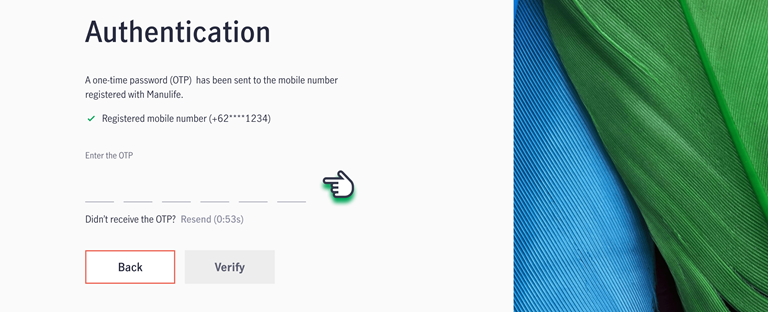
4. A One-Time Password (OTP) will be sent to your mobile number or email address registered with Manulife. Verify your account by entering the OTP.
5. After verification, you will receive your ManuConnect ID.
What is my MyManulife / Manulife SG App account password?
If you have forgotten your password, follow the steps below to reset your password:
1. Log in to your account via MyManulife or the Manulife SG App.
2. If you're on MyManulife, click "Forgot/Reset password". If you're using the Manulife SG App, tap "Sign in", followed by "Forgot/Reset password".
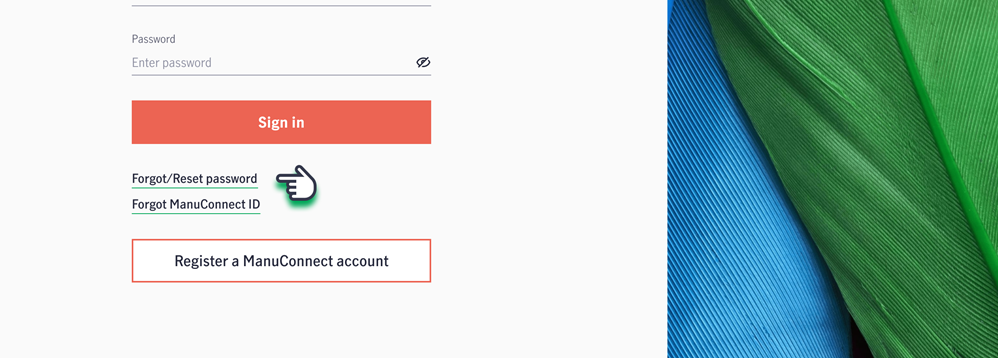
.png)
3. Enter your ManuConnect registered email address, then click "Continue".
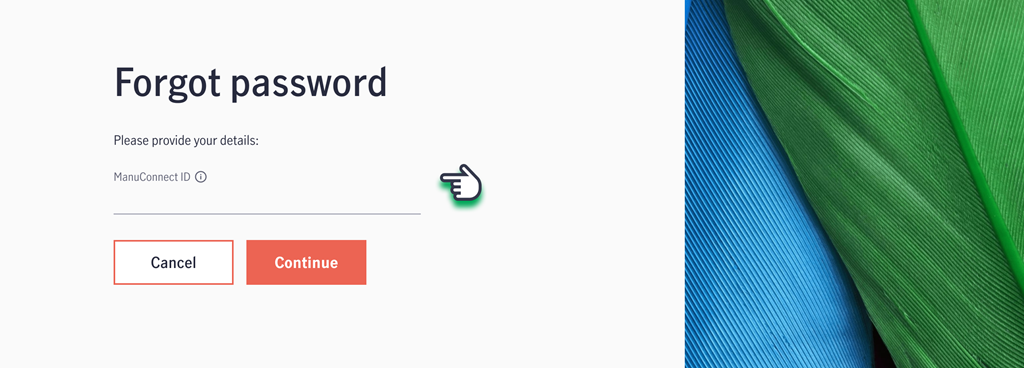
.png)
4. A One-Time Password (OTP) will be sent to your ManuConnect registered email address. Verify your account by entering the OTP.
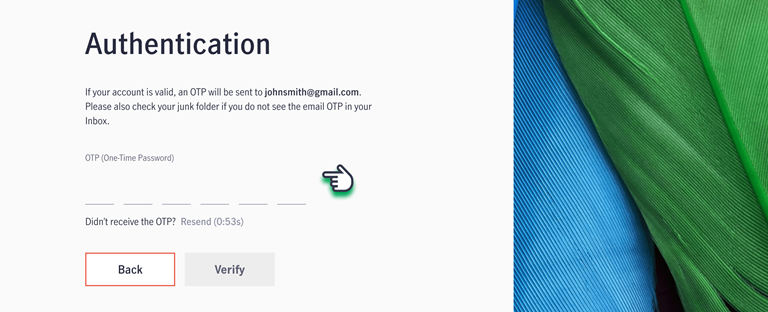
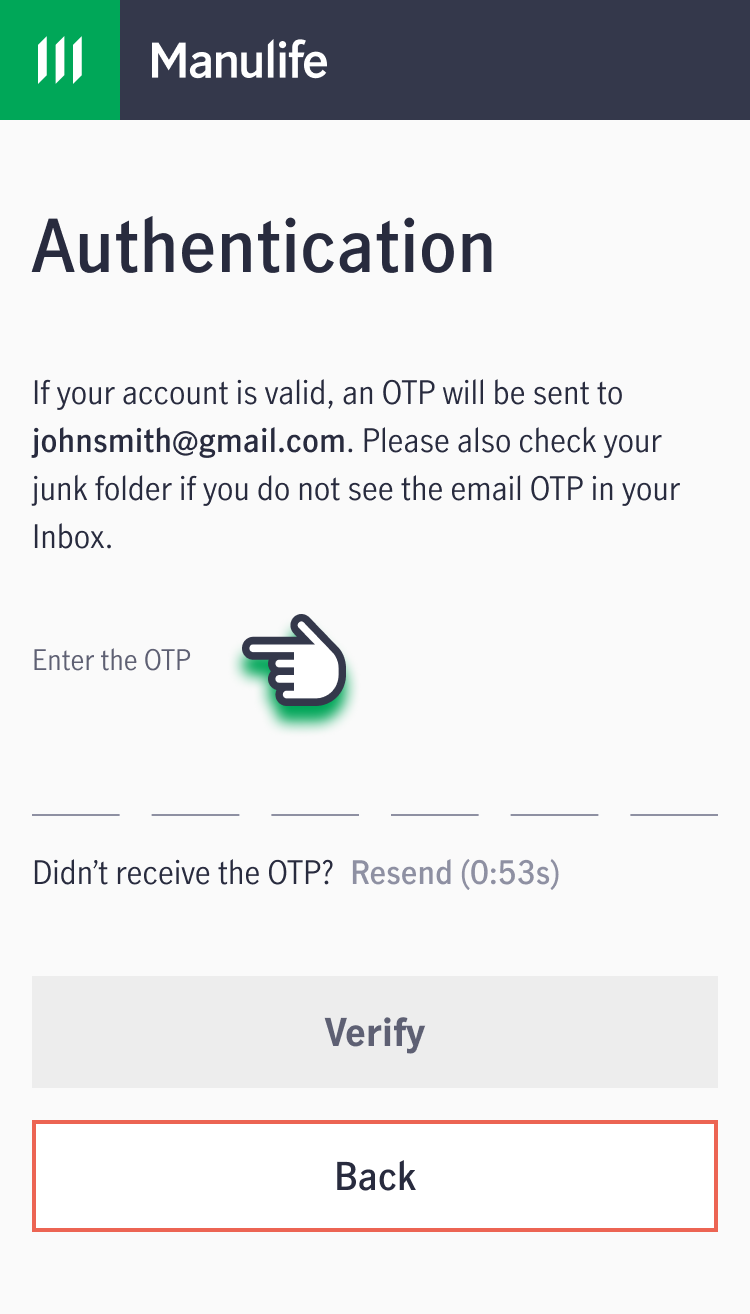
5. Create a password, then click "Continue".
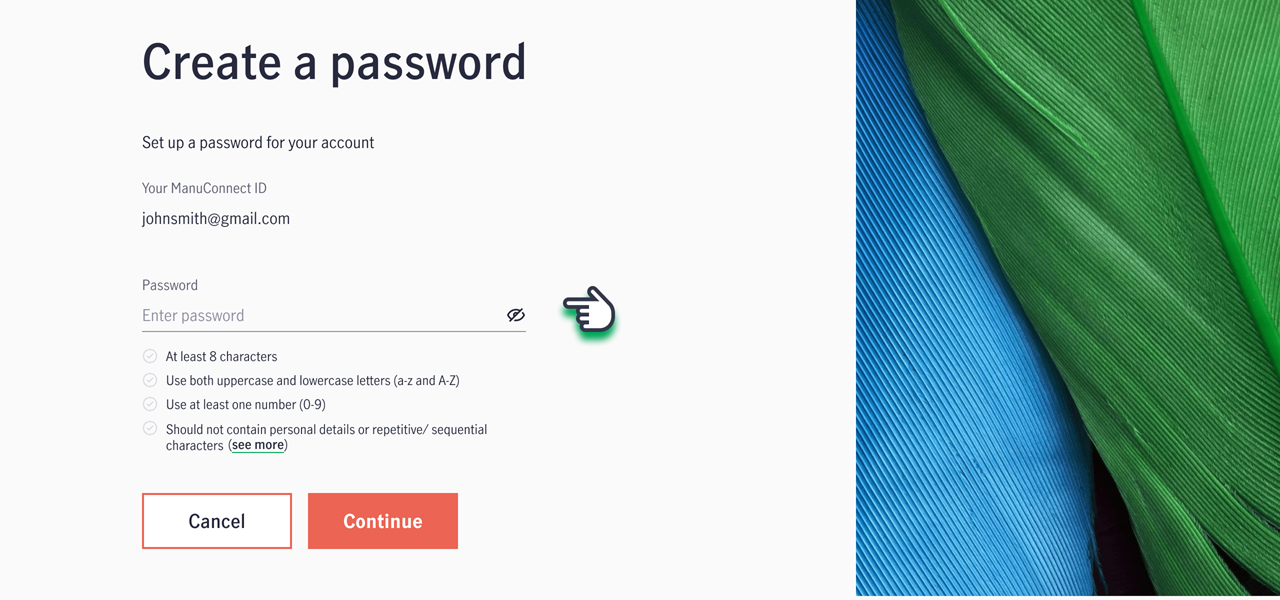
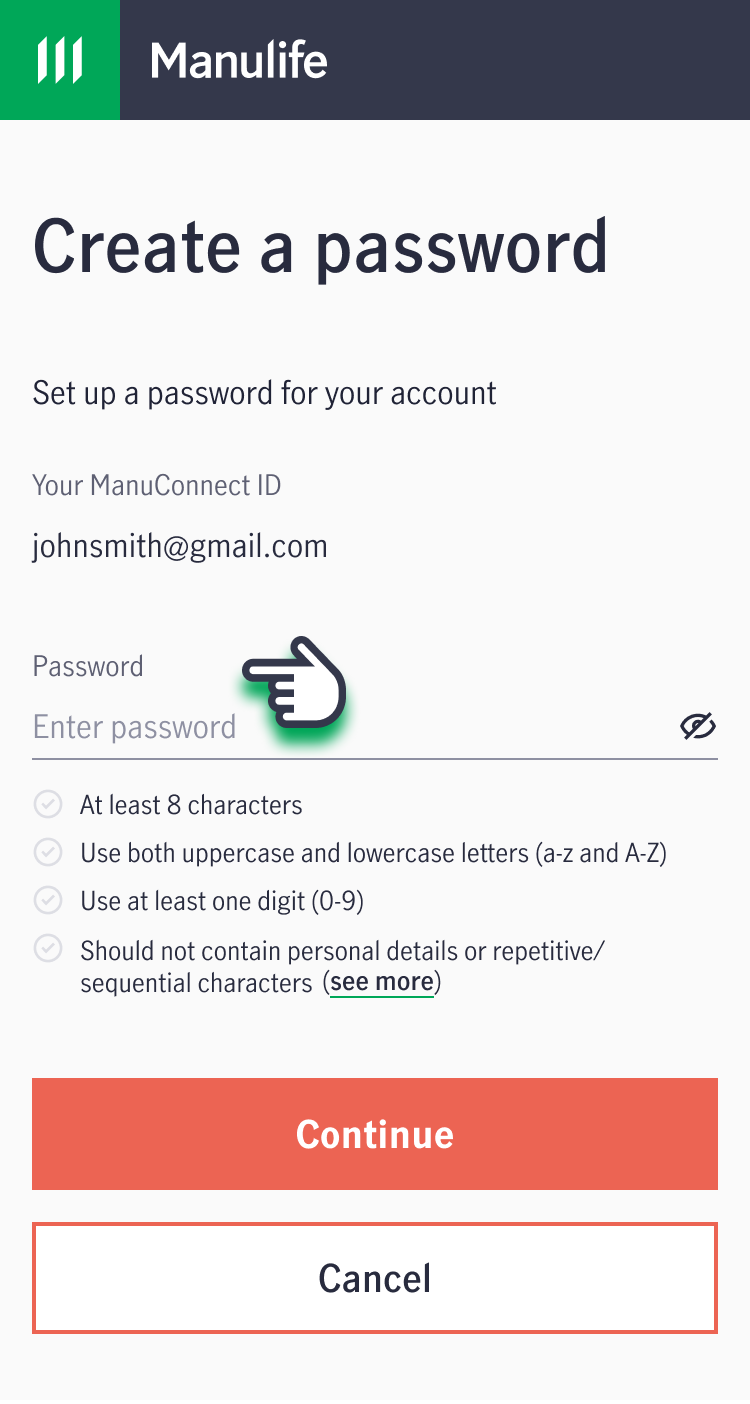
6. Your account password has been successfully updated! You will be directed to the main page to log in and start using your account.
How can I change my login email (ManuConnect ID) and password used for MyManulife / Manulife SG App?
Follow the steps below to change your login email and/or password:
1. Log in to your account via MyManulife or the Manulife SG App.
2. Click on the "Profile" tab, then select "Login & Password".
3. Click "Edit" to update your login and/or password.
How do I enable biometric authentication (Touch / Face ID) to sign in to the Manulife SG App?
- Sign in using your ManuConnect ID and password, or via Singpass.
- If this is your first time using the app, you will receive a prompt to register your device for biometric authentication. Select “Enable" to proceed.
- Alternatively, after signing in, go to your profile. Under “Account settings”, enable the toggle button next to Biometric ID.
How do I enable push notifications on the Manulife SG App?
1. Sign in using your ManuConnect ID and password, or via Singpass.
2. If this is your first time using the app, you will receive a prompt to turn on notifications. Select “OK" or “Allow” to proceed.
3. Alternatively, after signing in, go to your profile. Under “Account settings”, enable the toggle button next to Push notifications.
What is the digital token on the Manulife SG App?
How do I enable the digital token on the Manulife SG App?
- Sign in using your ManuConnect ID and password, or via Singpass.
- If this is your first time using the app, you will receive a prompt to enable digital token. Select “Enable" to proceed.
- Alternatively, after signing in, go to your profile. Under "Account settings", enable the toggle button next to Digital token.
View eStatements and contracts
How can I view my policy statements and contracts?
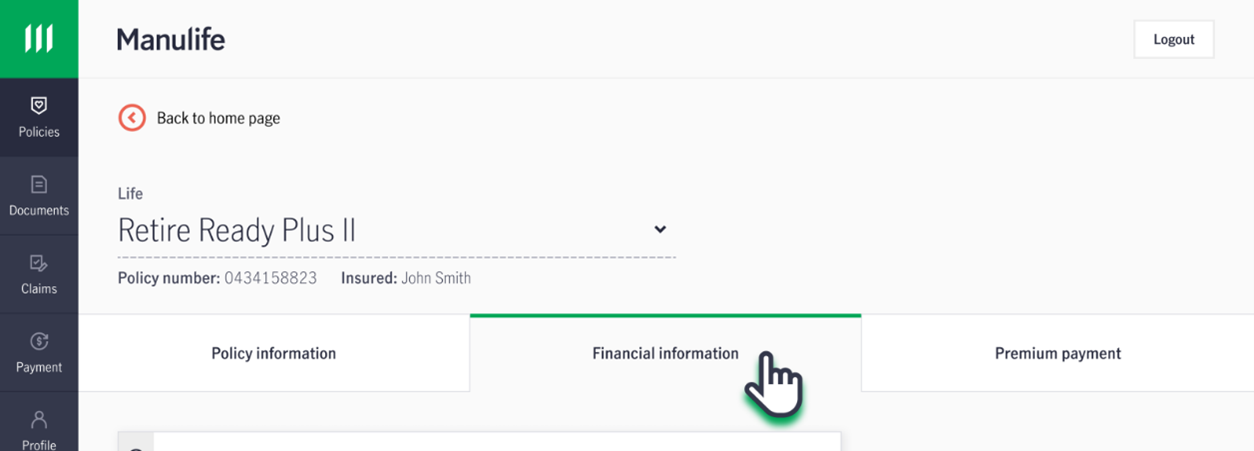
You can view and download past policy statements and contracts through our customer portal, MyManulife, or via the Manulife SG App.
Here’s a video guide on how to access your policy documents.
1. Log in to your account via MyManulife or the Manulife SG App.
2. Click on the "Services" tab, then select "eStatements & Contracts".
3. Select the policy you would like to view.
Where can I find my policy contract?
You can access policy contracts issued from September 2018 onwards (for policies purchased via DBS/POSB, only contracts issued from July 2019 onwards) through our customer portal, MyManulife, or via the Manulife SG App.
If you need the policy contract for policies issued before September 2018, click here to contact our Client Services Team.
View policy details
1. Log in to your account via MyManulife or the Manulife SG App.
2. Select the relevant policy from the dashboard.
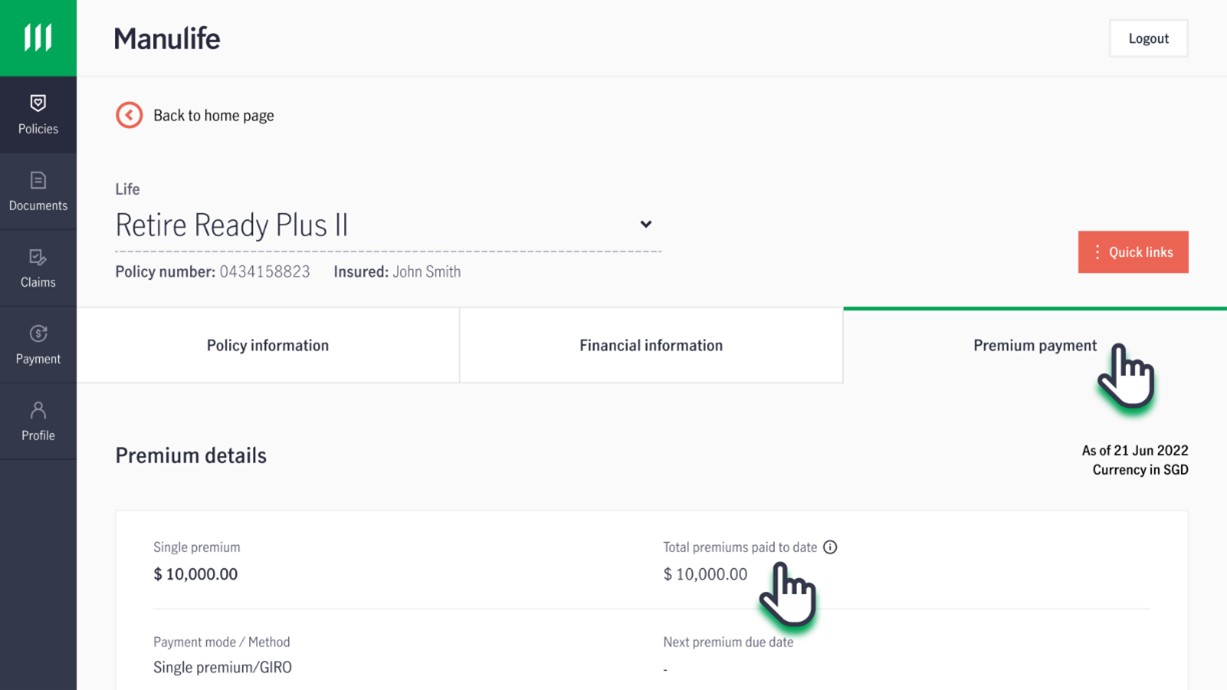
3. You can view your premium duration and amount under the “Premium payment” tab.
How do I check my payment mode / method?
1. Log in to your account via MyManulife or the Manulife SG App.
2. Select the relevant policy from the dashboard.
3. You can view your payment mode / method under the "Premium payment" tab.
1. Log in to your account via MyManulife or the Manulife SG App.
2. Select the relevant policy from the dashboard.
3. Under the "Premium payment" tab, find the Total premiums paid to date under "Premium details".
How do I find my servicing Representative?
1. Log in to your account via MyManulife or the Manulife SG App.
2. Click on "Policies" and select the relevant policy.
3. Under the "Policy Information" tab, scroll to the bottom of the page to check the servicing Representative for your policy.
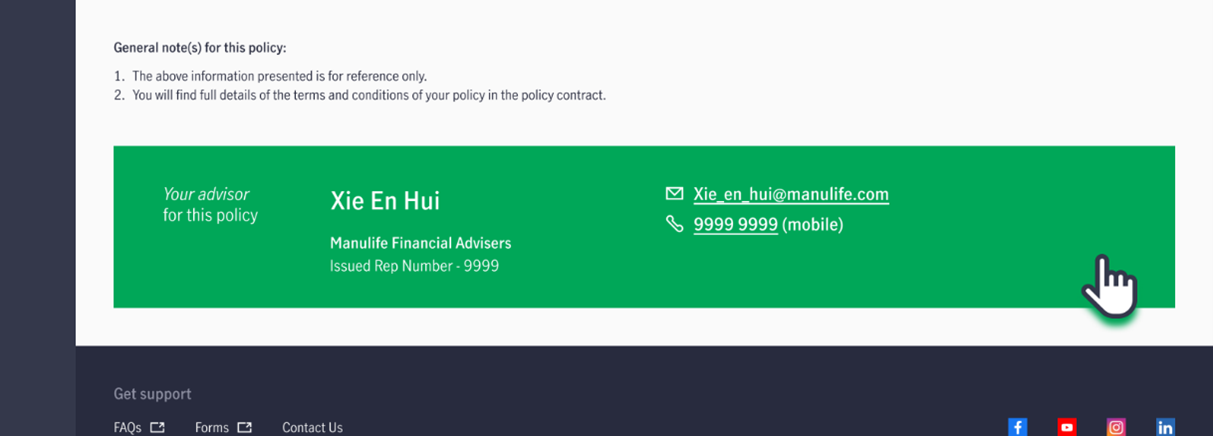
If your policy does not have any assigned Representative, you may contact us via the Contact Us form
Decommissioning of ManulifeMOVE App
When will the ManulifeMOVE app stop working?
The ManulifeMOVE app will be decommissioned on 28 February 2026. After this date, you will no longer be able to access or use the ManulifeMOVE app.
What is changing?
- The ManulifeMOVE app (the standalone app) is being retired.
- Key ManulifeMOVE app features and the ManulifeMOVE programme benefits will be available in the Manulife SG App instead.
What ManulifeMOVE app features are moving to the Manulife SG app?
Key ManulifeMOVE app features will be available in the Manulife SG App, including:
- Viewing your membership tier and partner benefits (where applicable)
- Fitness/activity tracking after connecting a supported fitness data source/tracker
- Missions and challenges (coming soon)
Note: Features may vary slightly by customer eligibility and app version.
What can customers look forward to with the change?
Customers will enjoy:
- A single app experience with unified login and streamlined access to insurance services and wellness benefits
- The continued ability to track fitness activities and participate in wellness challenges with Manulife SG App
- Easy access to the ManulifeMOVE programme benefits—including health, wellness, fitness, and lifestyle offerings—within the app
Will my ManulifeMOVE app activity history be preserved?
Your activity history from the ManulifeMOVE app will not be carried over to the Manulife SG App.
However, once you connect a supported fitness tracker/data source in the Manulife SG App, the app may be able to display historical activity data up to 1 2 months, depending on your tracker/data availability.
Do I need to reconnect my fitness tracker (Apple Health / Fitbit / Garmin, etc)?
Yes. If you were using a tracker with the ManulifeMOVE app, you will need to reconnect/resync your fitness tracker in the Manulife SG App.
Instructions are available within the Manulife SG App to guide you through connecting your fitness tracker/data source.
Where do I find the ManulifeMOVE features in Manulife SG app?
Open the Manulife SG App and from the homepage, tap on the MOVE tab at the bottom of your screen.
From there, you can:
- View your membership tier and explore partner benefits
- Connect your fitness tracker and join Missions (coming soon)
- Complete Missions to earn badges (coming soon)
I can’t see the MOVE tab in the Manulife SG App—what should I do?
Try the following:
- Update the Manulife SG App to the latest version (App Store/Google Play)
- Log out and log in again
- Check that you are using the Singapore version of the app and are signed in with the correct account
- If it still doesn’t appear, please contact support (see the last FAQ)
I don’t see my steps / activity / Mission progress—how do I fix this?
Common fixes include:
- Ensure your fitness tracker/data source is connected in the Manulife SG App
- Confirm your phone permissions are enabled (e.g., Health access on iOS, Activity permissions on Android)
- Keep your tracker app (e.g., Fitbit/Garmin app) signed in and syncing
- Try toggling the connection off/on and re-syncing
- Restart the app/phone after permissions updates
If the issue persists, please contact support (see the last FAQ)
Who can I contact for support?
You can contact us via the Manulife Singapore website under:
Self Services & Claims → Contact Us